

Analytics settings: tracking IDs and SEO tags
Where: Settings > General Settings > Analytics
Who can use it: Sidebar permission: settings.view or manage settings. No plan or add-on is needed.
Open this page in SureTill
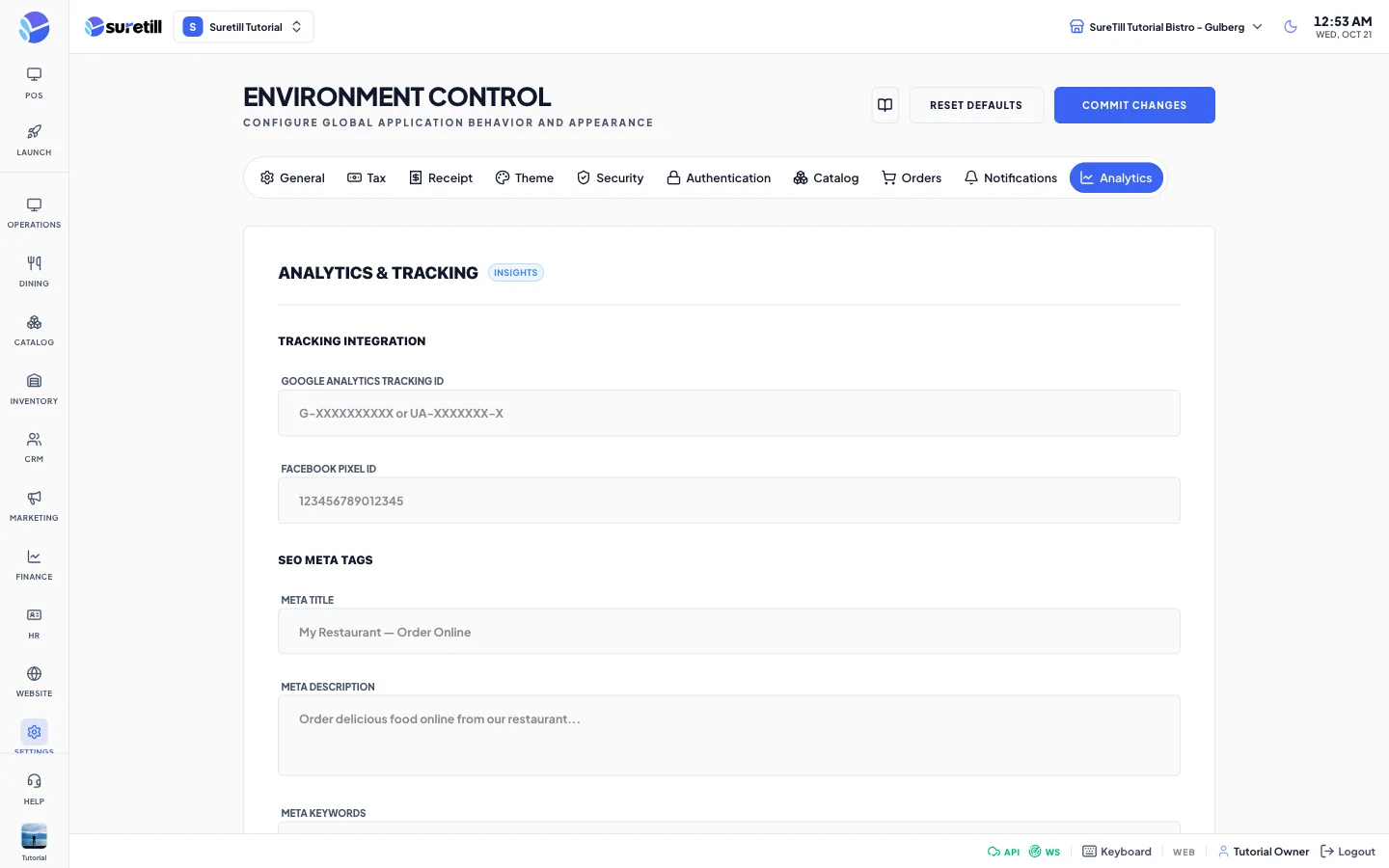
The Analytics tab is titled Analytics & Tracking. It saves five values in the analytics group when you press Commit Changes.
Step by step: add tracking and SEO text
Section titled “Step by step: add tracking and SEO text”- Open Settings > General Settings and click the Analytics tab.
- Paste the Google Analytics Tracking ID and the Facebook Pixel ID.
- Fill in the Meta Title, Meta Description and Meta Keywords.
- Click Commit Changes.
Every setting explained
Section titled “Every setting explained”| Setting | What it does |
|---|---|
| Google Analytics Tracking ID | Example: G-XXXXXXXXXX or UA-XXXXXXX-X. |
| Facebook Pixel ID | A number, for example 123456789012345. |
| Meta Title | The page title for search results. Example: My Restaurant, Order Online. |
| Meta Description | A short text for search results. |
| Meta Keywords | Words separated by commas. Example: restaurant, food, delivery, online ordering. |