
Let guests order from the table, straight to the kitchen
Every table gets a QR code. Guests scan it, browse your menu, order from their phone, call the waiter or ask for the bill. No app to install. Orders arrive on the POS, and staff can accept or reject each one.
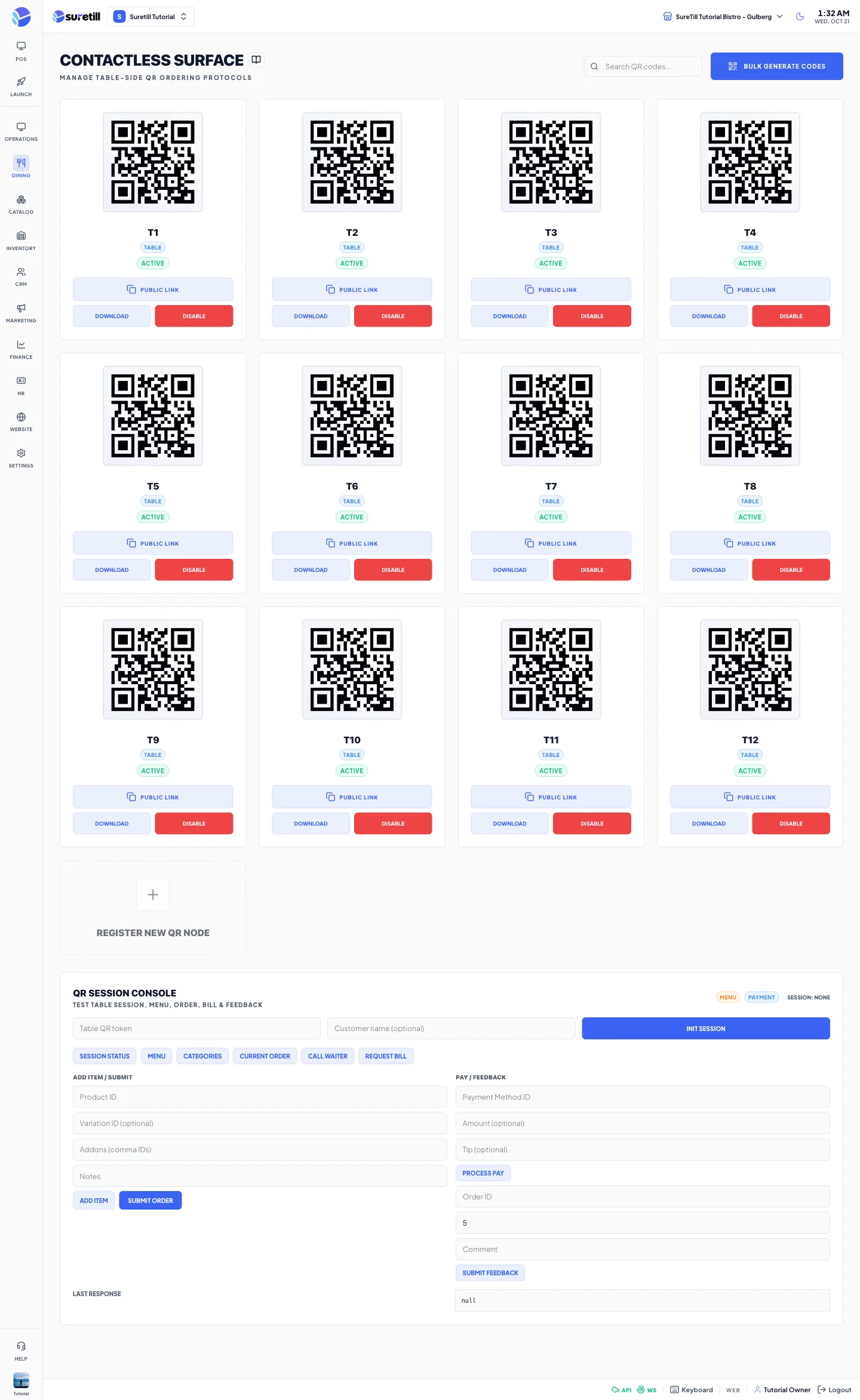
Every table gets its own QR code. A guest scans it with the phone camera, sees your menu with photos, sizes and extras, and can place an order, call the waiter or ask for the bill. Nothing to install and no account to create.
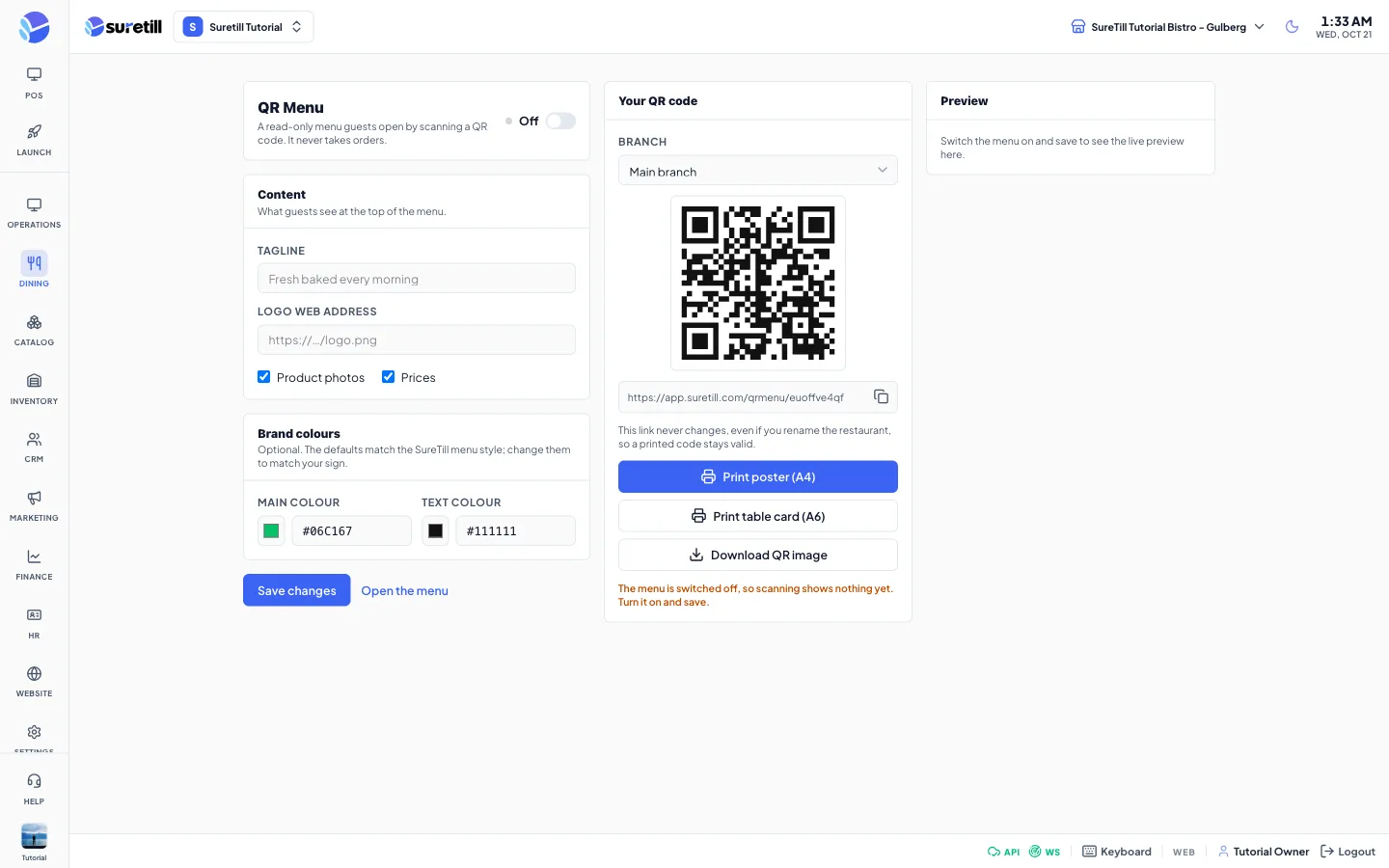
Orders arrive on your POS and kitchen screen next to counter orders, and staff accept or reject each one. If you only want guests to browse, switch to the read-only QR menu and keep taking orders the usual way.
QR ordering, in practice
The menu opens in the phone's normal browser.
Table orders sit in the same queue as counter orders and print to the right station.
Guests can ask for help without waving a hand across the room.
Prefer a read-only menu? The QR menu shows categories, prices, sizes and extras but never takes orders.
Four steps
- 01Print the QR codes
One per table, from the QR ordering page.
- 02Guest scans and orders
They pick items, sizes and extras on their phone.
- 03Staff accept
The order appears on the POS and kitchen display.
- 04Bill as usual
Payment is taken on the POS like any dine-in order.
Step-by-step guides: QR Ordering, QR Menu, Table Orders.
Is QR ordering an add-on?
The read-only QR menu is an add-on. Ask us for the current plan and add-on details.
Can I stop orders when the kitchen is slammed?
Yes. Orders are accepted or rejected by staff, and ordering can be switched off.
Does it work on any phone?
Any phone with a camera and a browser.
See QR ordering running on a real restaurant.
Open the live demo and click through it yourself, or book a 30-minute appointment and we set it up for your menu while you watch.